Docs
Live meetings
The overlay, how it decides when to speak, and the typed and spoken paths into the same answer.
The overlay
The overlay is the one thing on screen while Veyra works. It floats above your meeting — above any window, in fact — and shows what it is doing: listening, classifying a turn, streaming an answer, or done.
Put it wherever it suits you. Veyra remembers, per screen.
Global shortcuts work from anywhere, meeting or not:
| ⌘ ⇧ Space | Show or hide the overlay |
|---|---|
| ⌘ ⇧ A | Ask Veyra directly |
| ⌘ ⇧ V | Show or hide the main window |
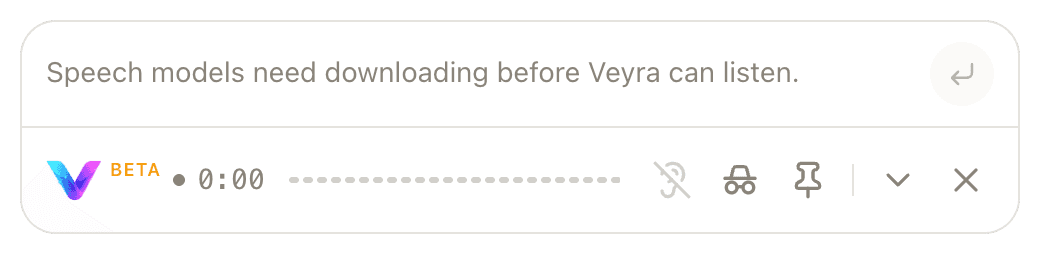
The composer placeholder is the status line — it changes to say exactly what is happening ("Listening…", or, here, that speech models still need downloading) rather than spending a separate row on it.
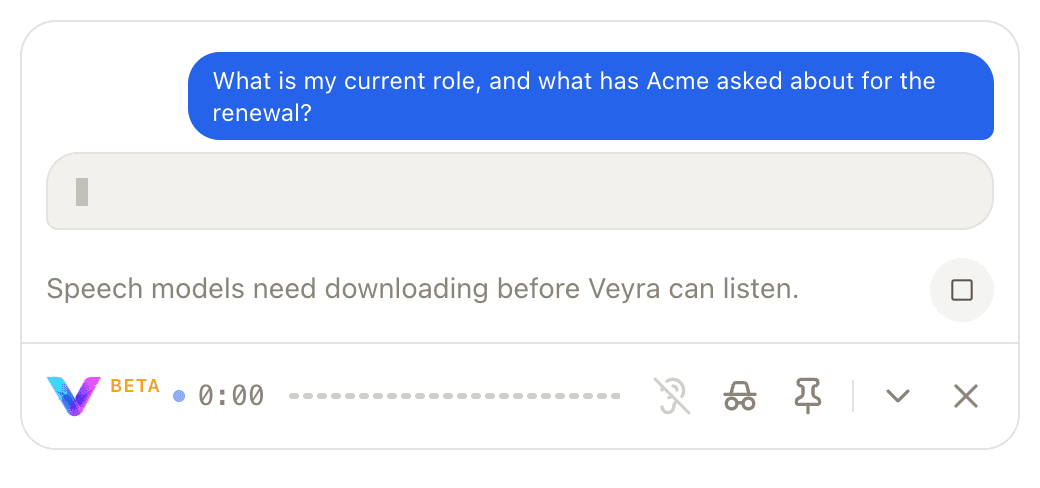
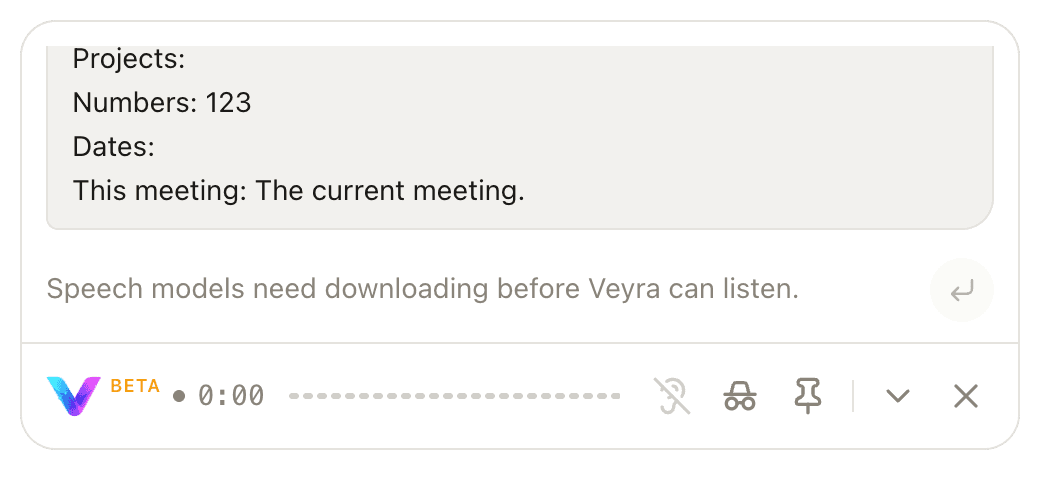
This exact window is opened by the control page below (Window → Expanded/Compact) or by a live meeting once one is worth answering — the images above were captured via a typed question, since this environment cannot provide live meeting audio; the window itself is the real one.
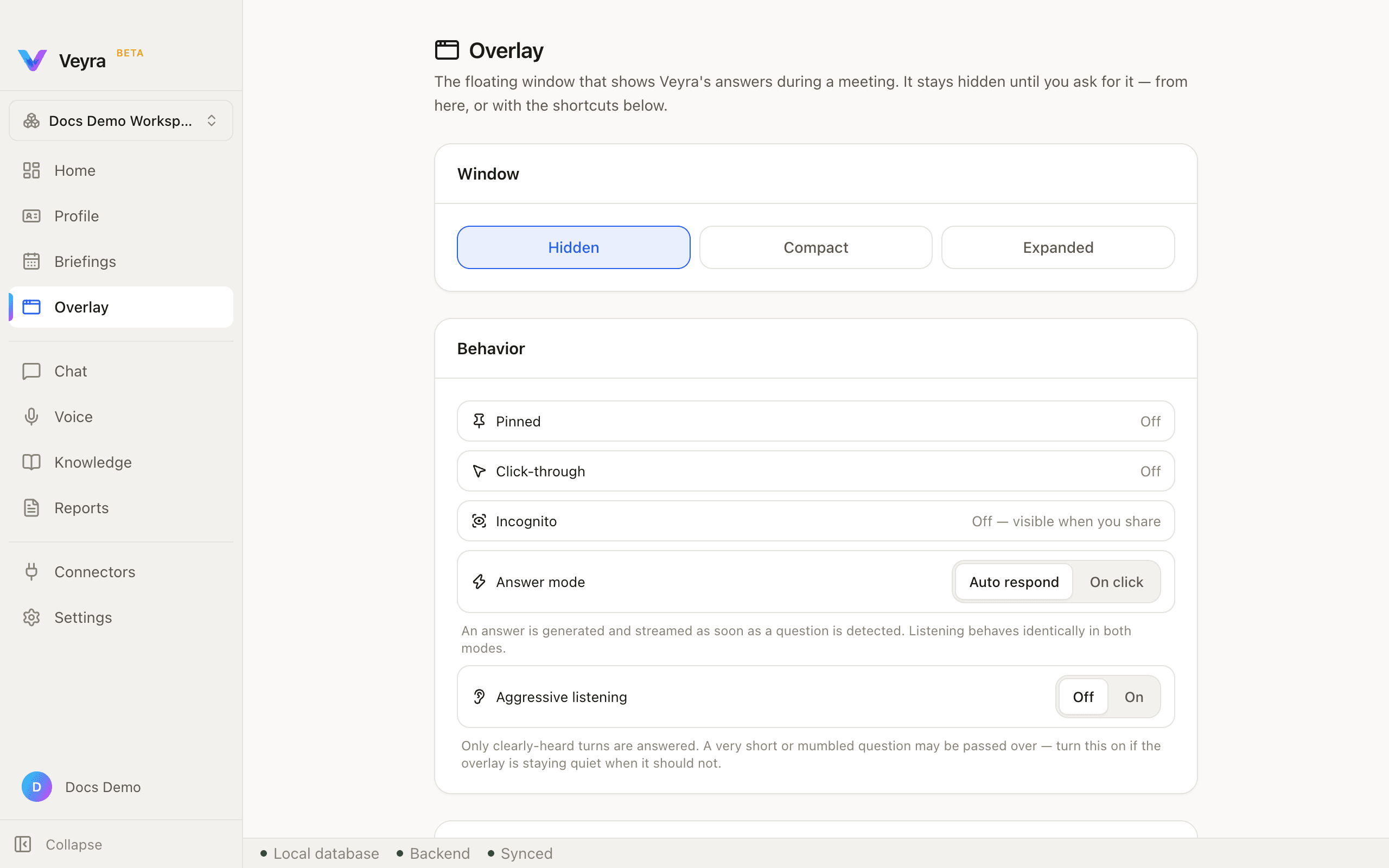
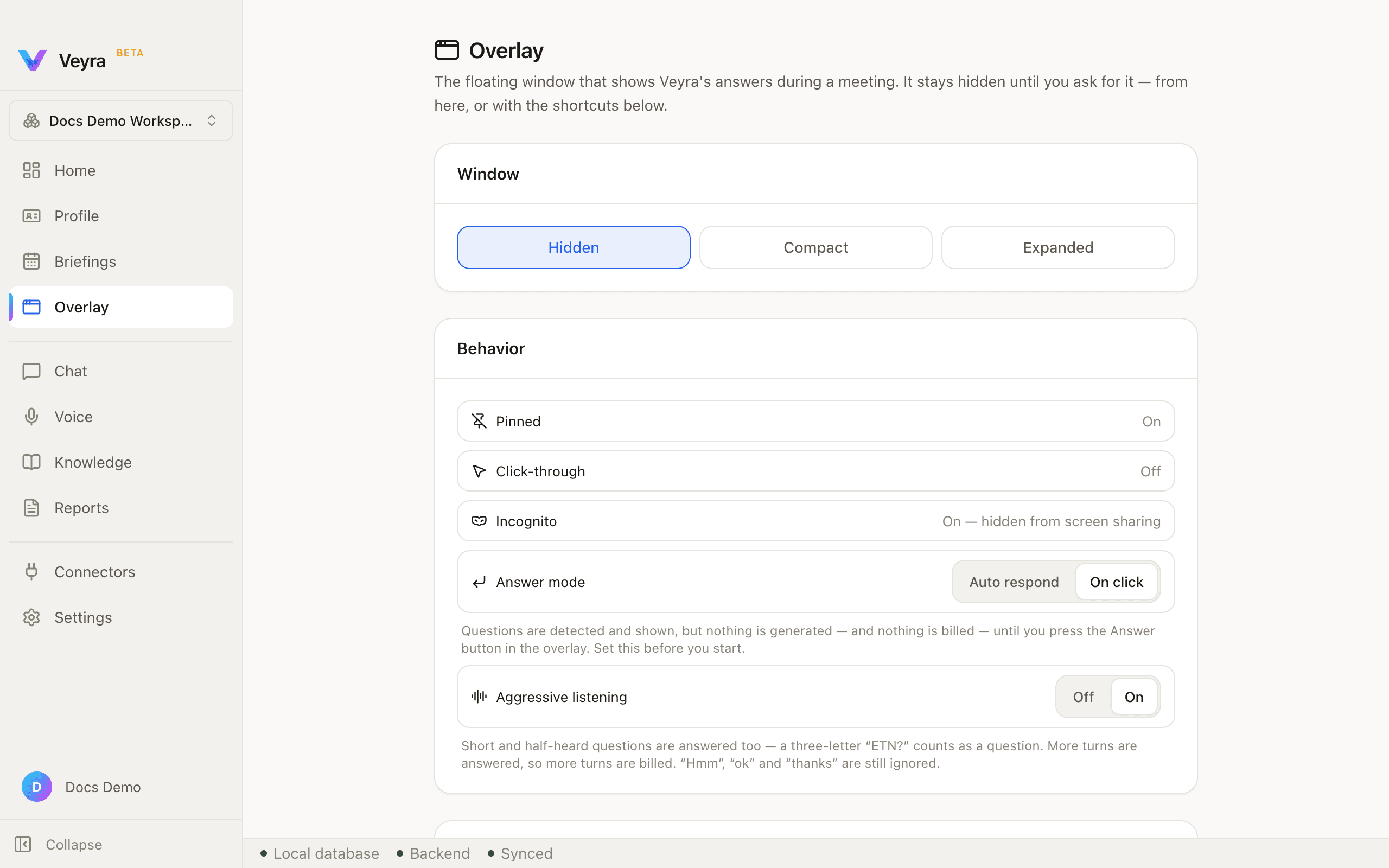
| Window | Hidden / Compact / Expanded — a three-way switch for the overlay window state. |
|---|---|
| Pinned | Keeps the overlay on top of everything, always. |
| Click-through | Lets clicks pass through the overlay to whatever is behind it. |
| Incognito | Hides the overlay from anything you share or record — see Incognito below. |
| Answer mode | Auto respond / On click — see Response modes and sensitivity below. |
| Aggressive listening | Off / On — widens what counts as worth answering. |
Further down this page: a Session history section, and a Shortcuts card listing the same three global hotkeys as the table above.
Response modes and sensitivity
These are two independent settings, not one three-way switch. One decides when an answer is paid for; the other decides what is even worth answering.
| Automatic | Answers appear on their own. Nothing to press while you are talking. |
|---|---|
| On click | Turns are still detected — none of them cost anything until you press Answer. |
| Quiet | Only clear, direct questions. |
|---|---|
| Balanced | The default. Clear questions and most real requests. |
| Aggressive | Short and half-heard turns too. |
Backchannels — "mm-hmm", "right", "go on" — are never answered.
Aggressive never overrides On click — more turns get detected, but none of them cost anything until you press Answer.
Incognito
Veyra stays on your screen and leaves the shared one.
Incognito asks macOS to leave the overlay out of captured video. It is off by default — with it on, Veyra is also absent from your own screenshots and recordings.
This is an OS capture flag, not a security guarantee — treat it as what it is: Veyra staying out of one specific video stream, not encryption or access control.
Chat
Chat is the typed fallback, for when a live meeting is not what you need. It draws on exactly what a live meeting would: your profile, your active briefing, and your indexed documents.
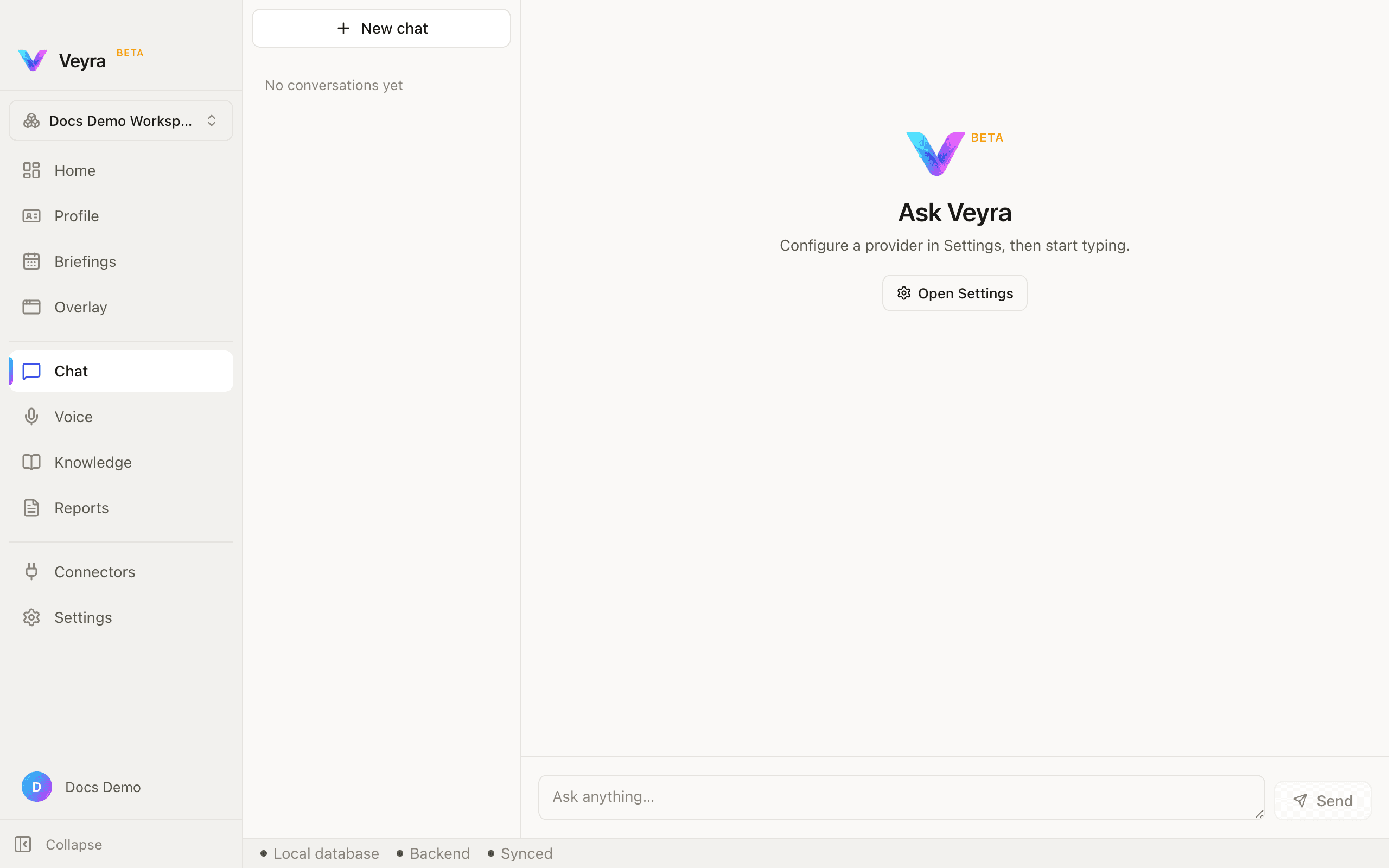
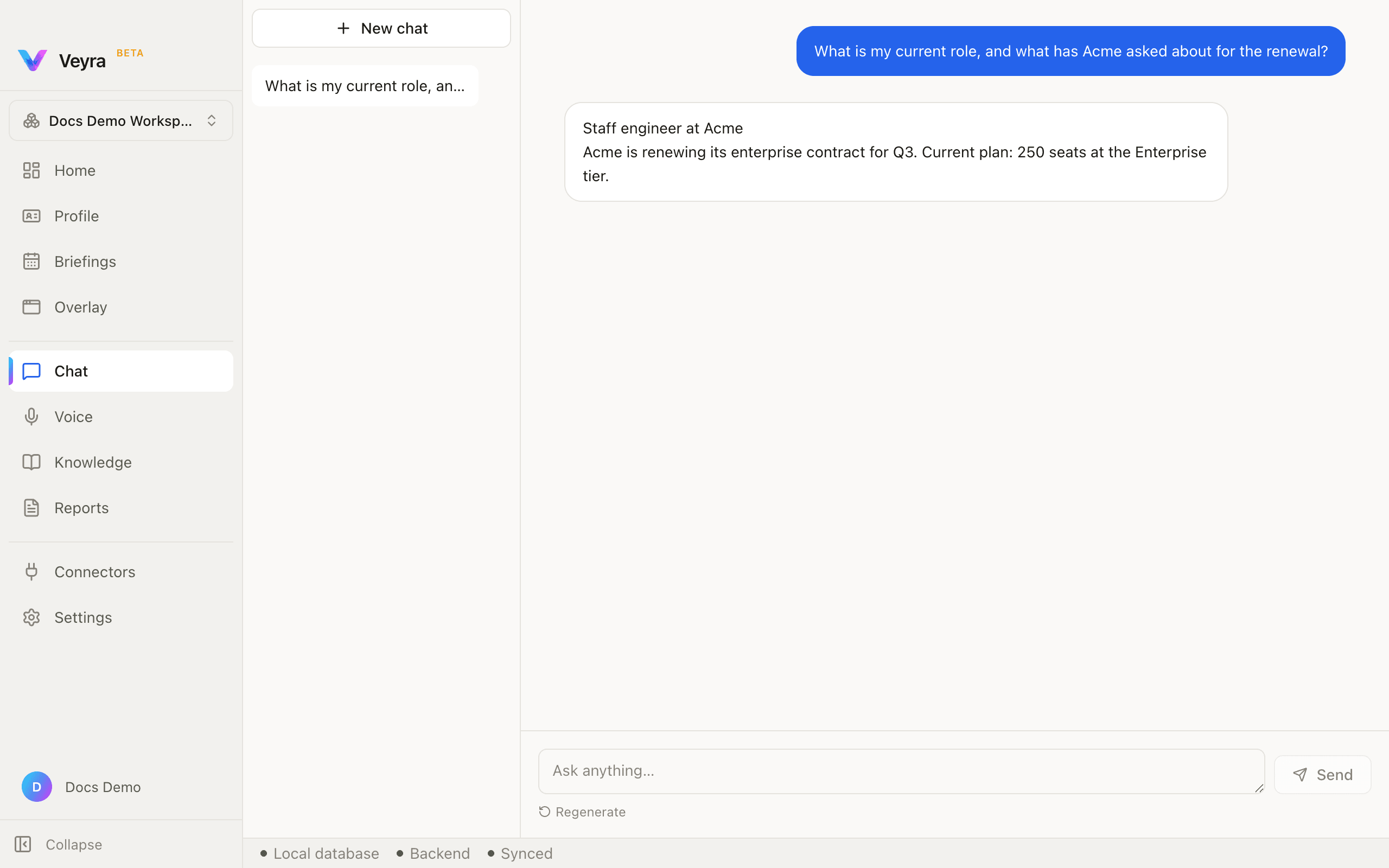
While an answer is streaming, Send is replaced by a Stop button so you can cut it off.
Answers that cite a specific document show a source strip beneath them — but only when the model's own reply actually marks what it used. An answer with no visible citation is not necessarily uncited internally; it means the model did not mark one this time.
Voice
Speech models, voice enrolment, and optional accuracy upgrades — everything the spoken side of Veyra needs live here.
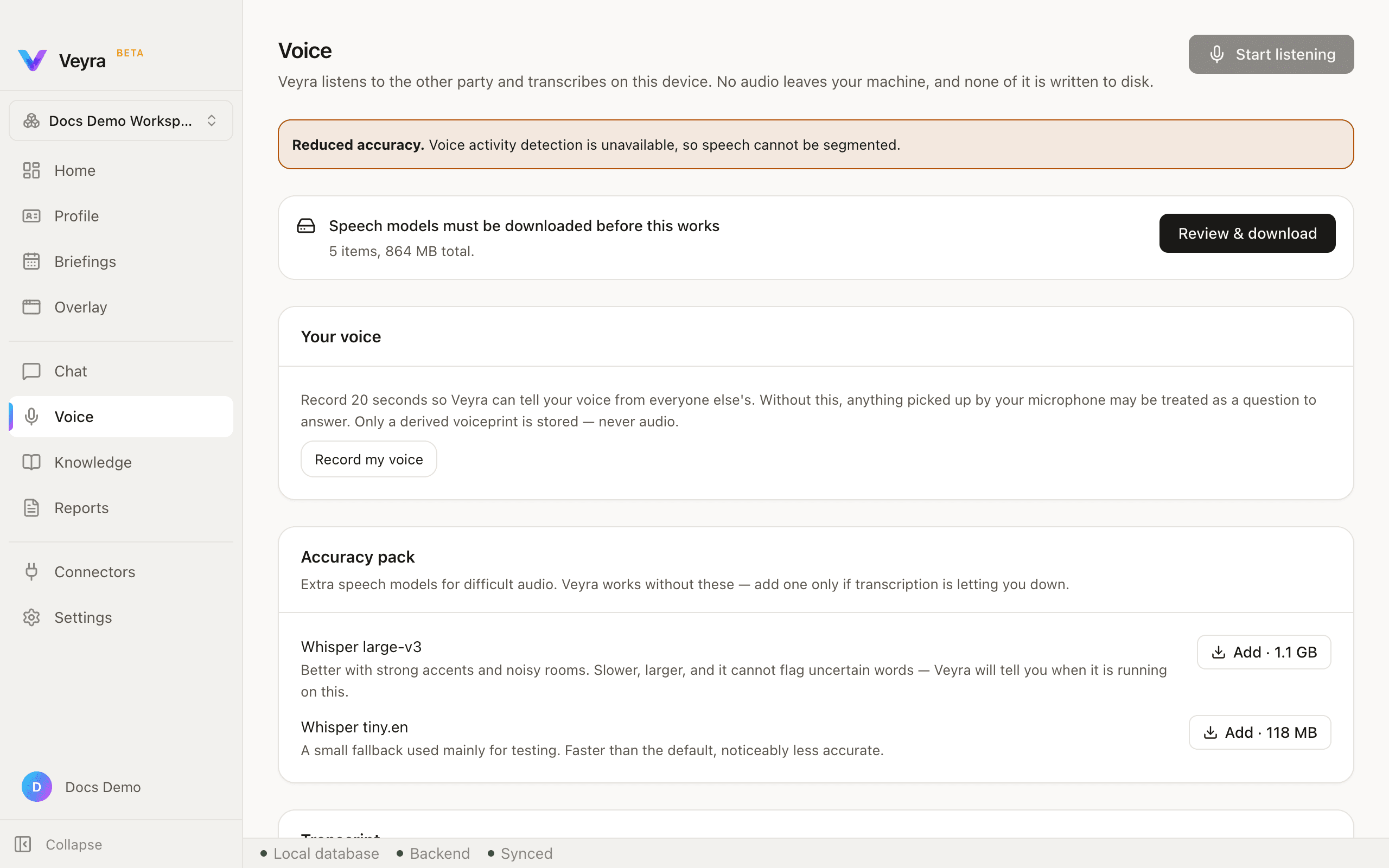
| Start listening | Top-right. Begins live capture, once speech models are installed. |
|---|---|
| Speech models | Must be downloaded before listening works — the card names the exact size. |
| Record my voice | Voice enrolment — helps Veyra tell your voice apart from others in a meeting. |
| Accuracy pack | Optional larger speech models you can add for better recognition, each with its real download size shown. |
A warning banner appears here when voice-activity detection is unavailable — it names the effect plainly ("speech cannot be segmented") rather than failing silently.