Docs
Getting started
What Veyra is, what it runs on, and what you see before it does anything at all.
What is Veyra
Veyra is a desktop assistant for live meetings. It listens to the call, works out what is being asked, and puts an answer on screen while you are still talking — fast enough to read while the conversation keeps moving.
It sits above whatever meeting app you already use. It is not a meeting app itself, and it does not join as a visible participant.
As much as possible stays on your Mac. What leaves is the question and the context you chose to give it — sent to the provider you picked.
Three things it is built against, in order: it should not slow you down, it should not say anything it cannot support, and it should stay out of the way the moment it has answered.
Requirements and installing
| Platform | macOS 14 or later, Apple Silicon |
|---|---|
| Note | Intel Macs are not supported. |
The app is a single .dmg. Open it, drag Veyra to Applications, and launch it from there like any other Mac app.
An unsigned build is stopped by Gatekeeper on first open. See Troubleshooting → Opening an unsigned build if macOS refuses to launch it.
First launch downloads the local models Veyra runs on your Mac — speech recognition, embeddings, and the small model that decides what is worth answering. This happens once, and you can watch its progress on first run.
Signing in and creating an account
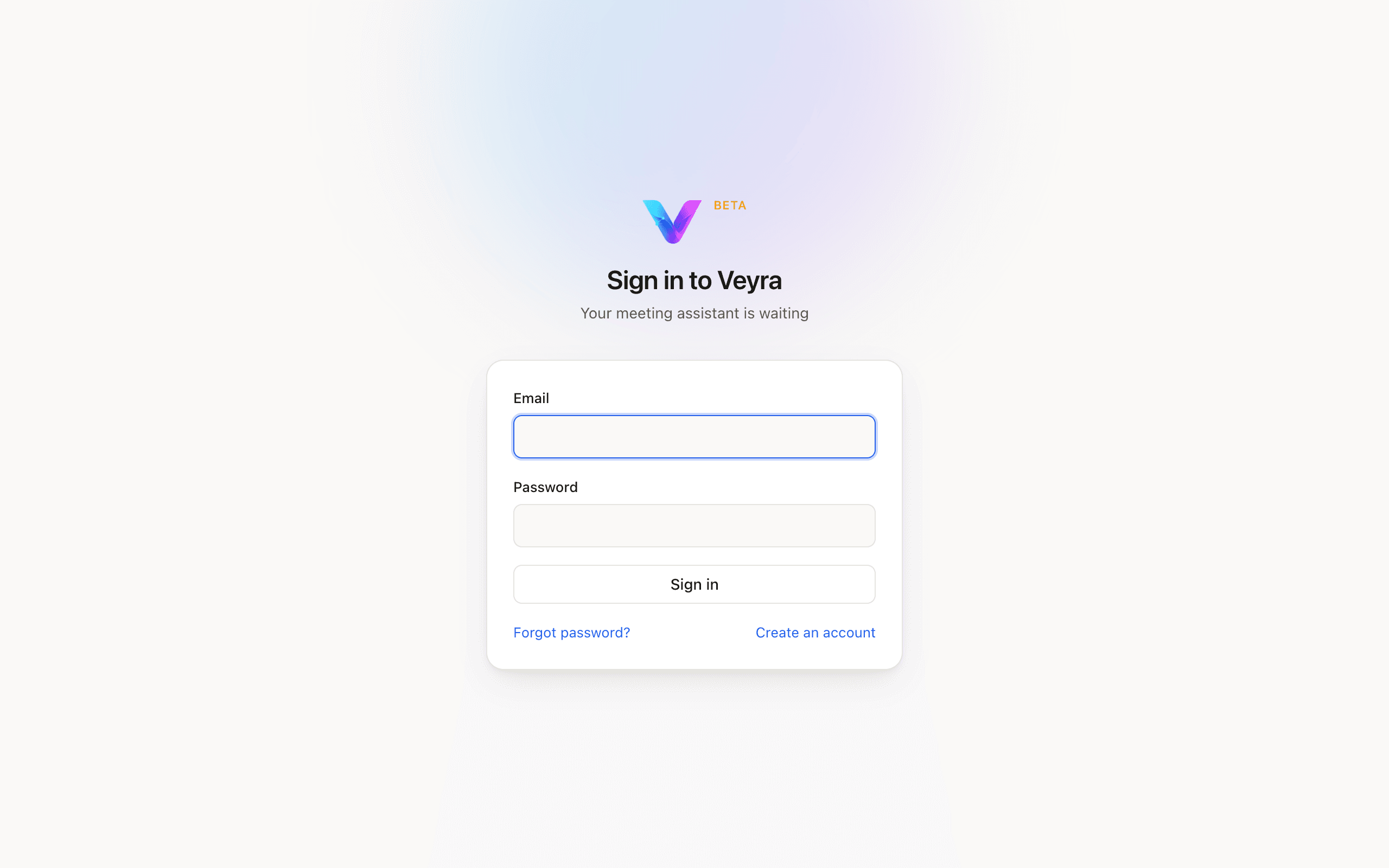
| Email, Password | The two fields on the sign-in form. |
|---|---|
| Sign in | Primary, full-width button. Submits the form. |
| Forgot password? | Text link below the button. |
| Create an account | Text link — takes you to the sign-up form below. |
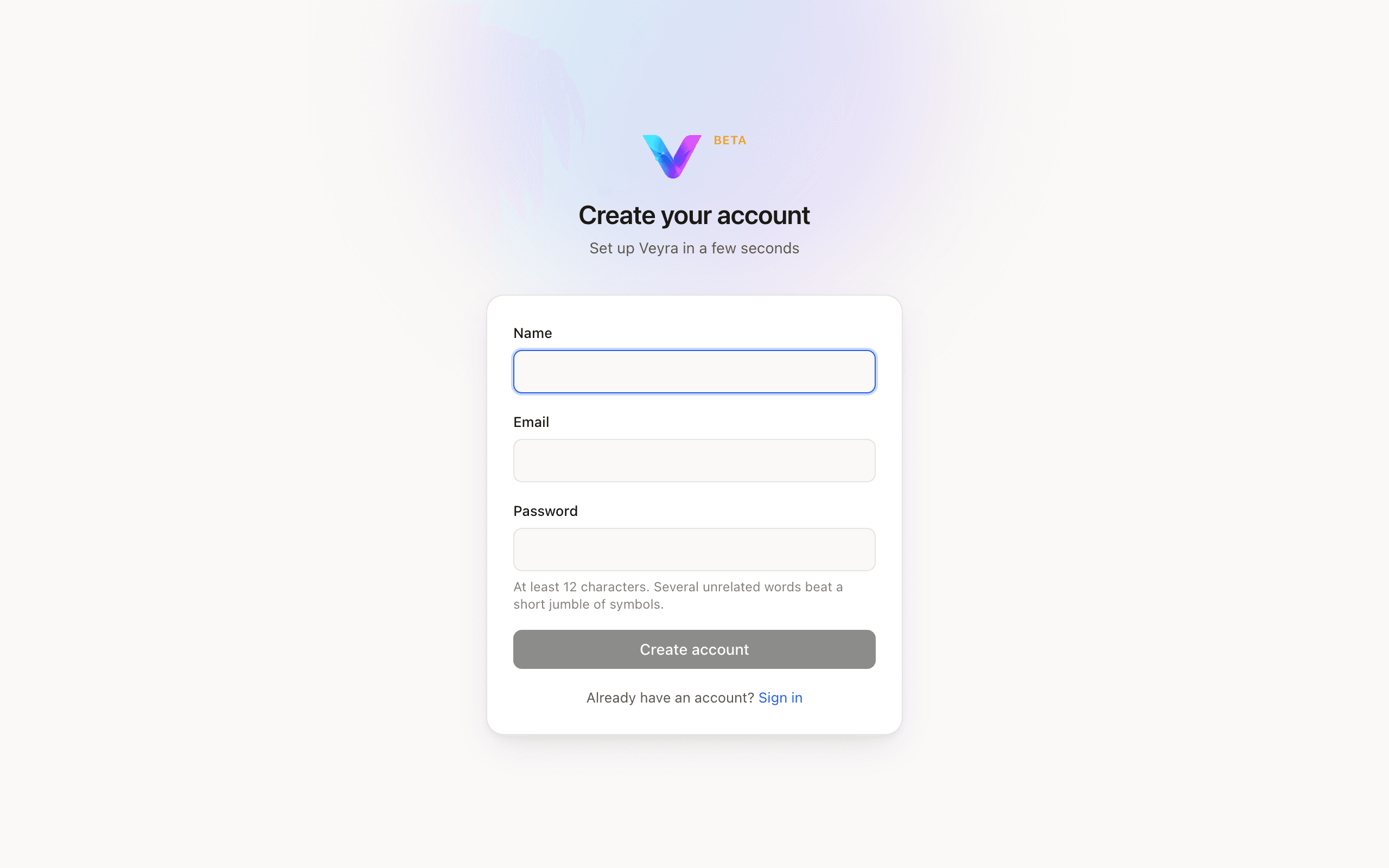
The sign-up form asks for a Name, an Email, and a Password. The password field carries a hint — at least 12 characters, several unrelated words beat a short jumble of symbols — and a live 4-segment strength meter that fills as you type.
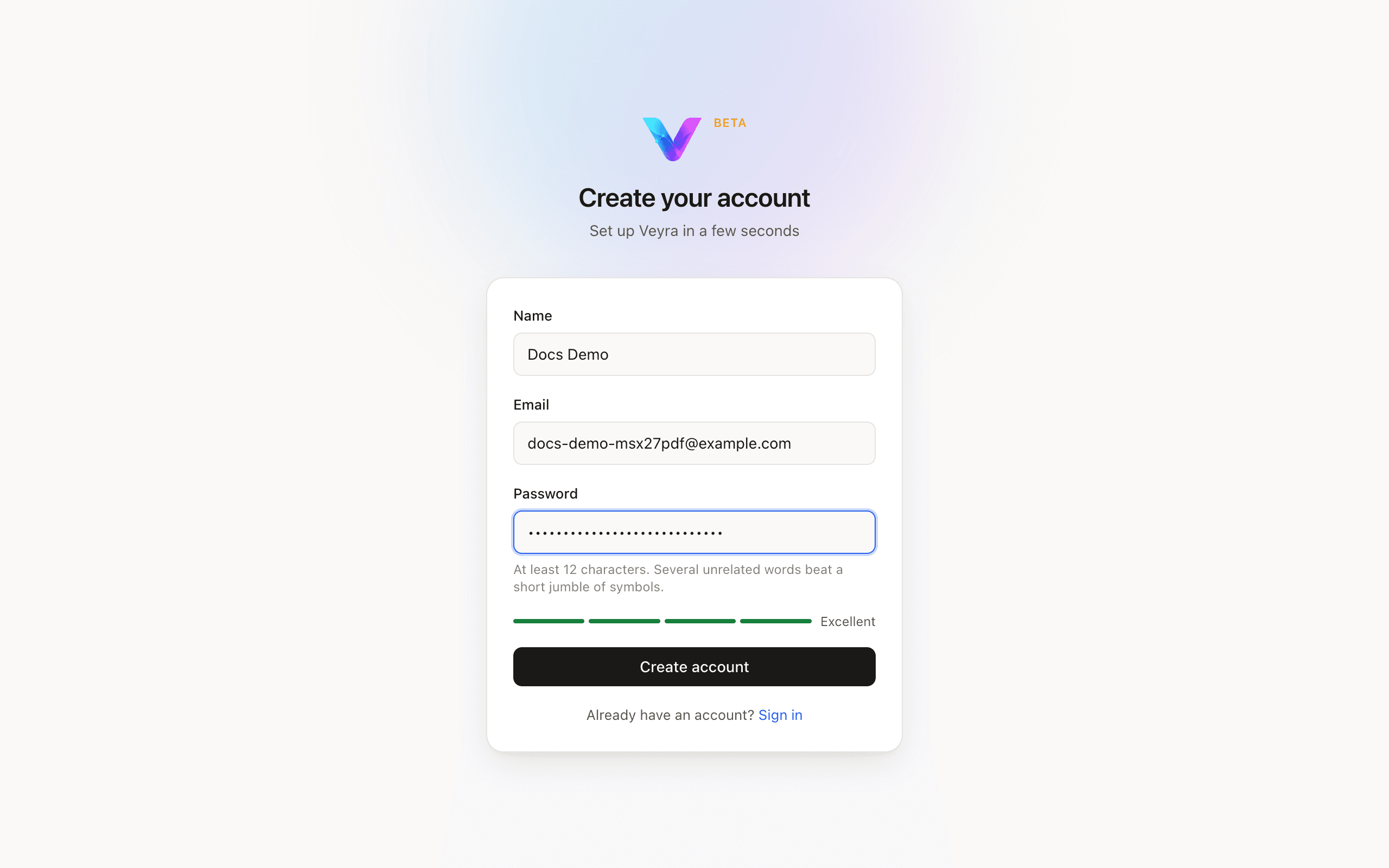
Signing up sends a confirmation email and is rate-limited on that side — if a signup attempt fails with a rate-limit message, wait before trying again rather than retrying immediately.
First-run setup
A new account opens straight into a first-run wizard — a full window with no sidebar, just a draggable header carrying the Veyra wordmark. A ribbon across the top shows a literal step counter ("Step 2 of 3") and a progress bar.
- Skip this step — ghost button, bottom-left. Present on every step.
- Back — appears once you are past the first step.
- The primary button on the right changes label to match the step: Continue on a middle step, Download on a step with something to fetch, Finish on the last one.
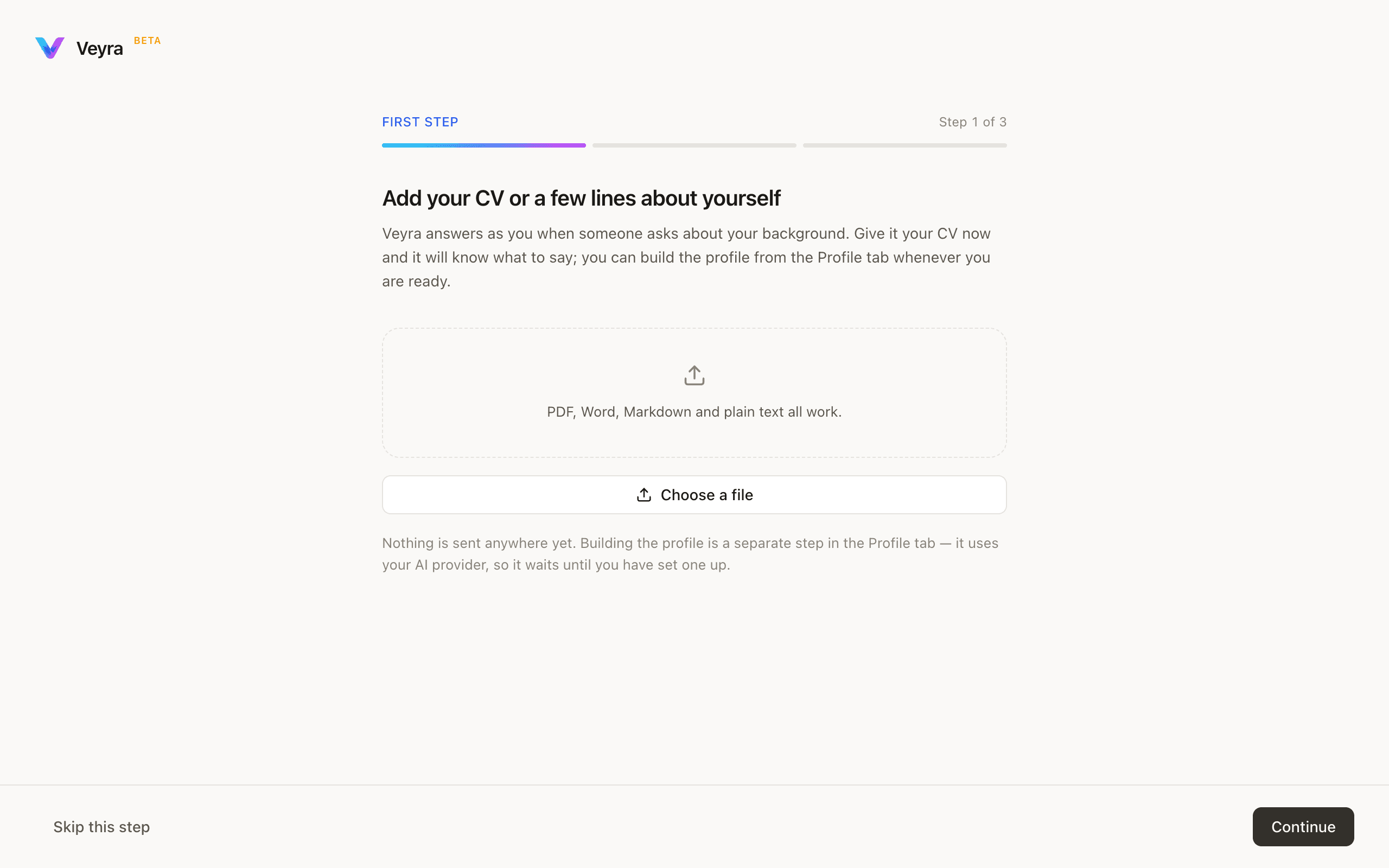
This step has a dashed upload zone (PDF, Word, Markdown and plain text all work) and a Choose a file button that opens your Mac's own file picker. Nothing is sent anywhere at this point — building the actual profile from what you add here happens later, from the Profile pane, once you have an AI provider connected.
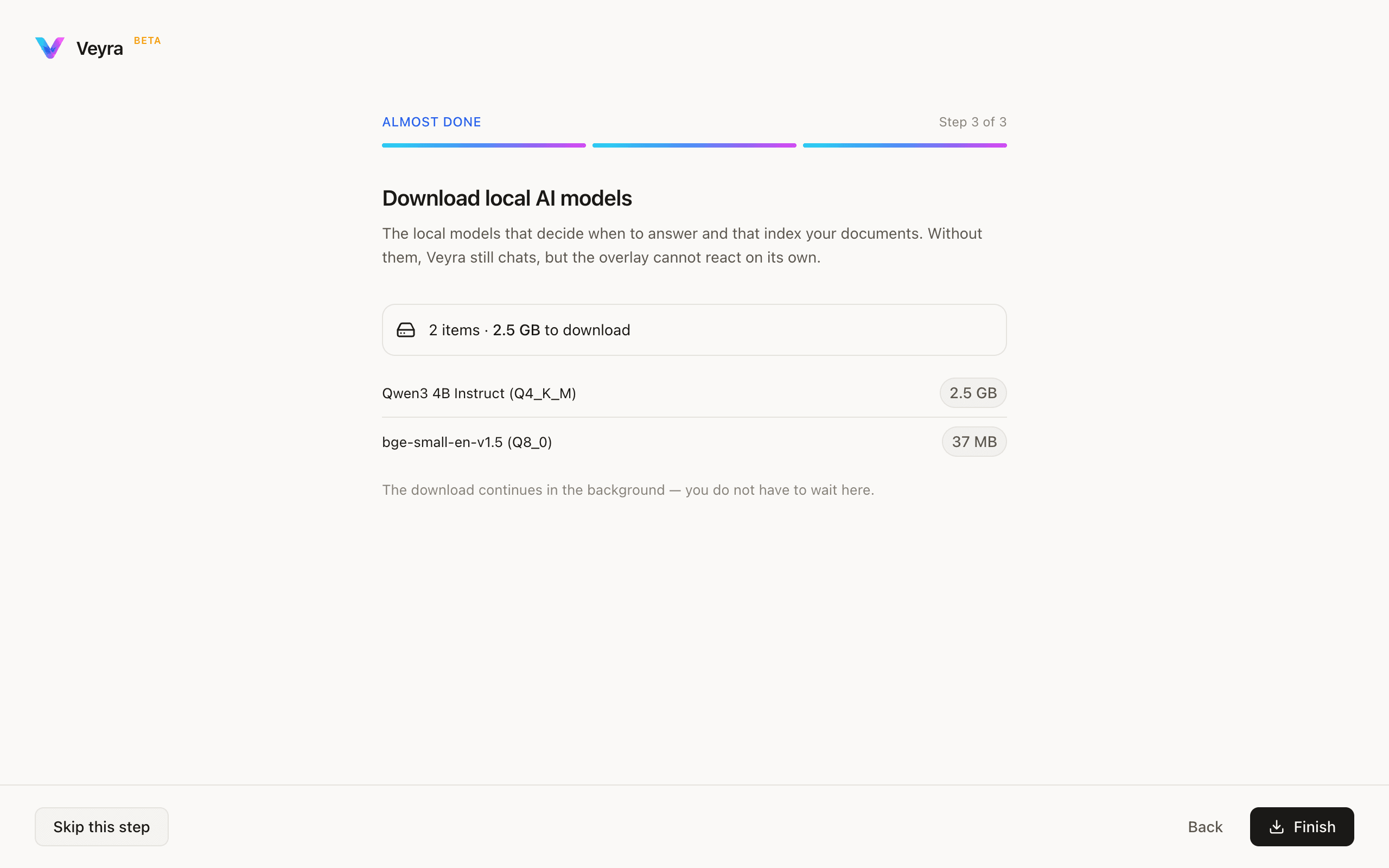
The local-models step names precisely what it downloads and how large each piece is — for example a small instruct model at a few gigabytes and a small embedding model at under 50 MB — so you know the cost before you start it.
Every step in this wizard is skippable. Skipping just means you do that setup later, from Home or Settings, instead of now — nothing is lost by deferring it.
Home
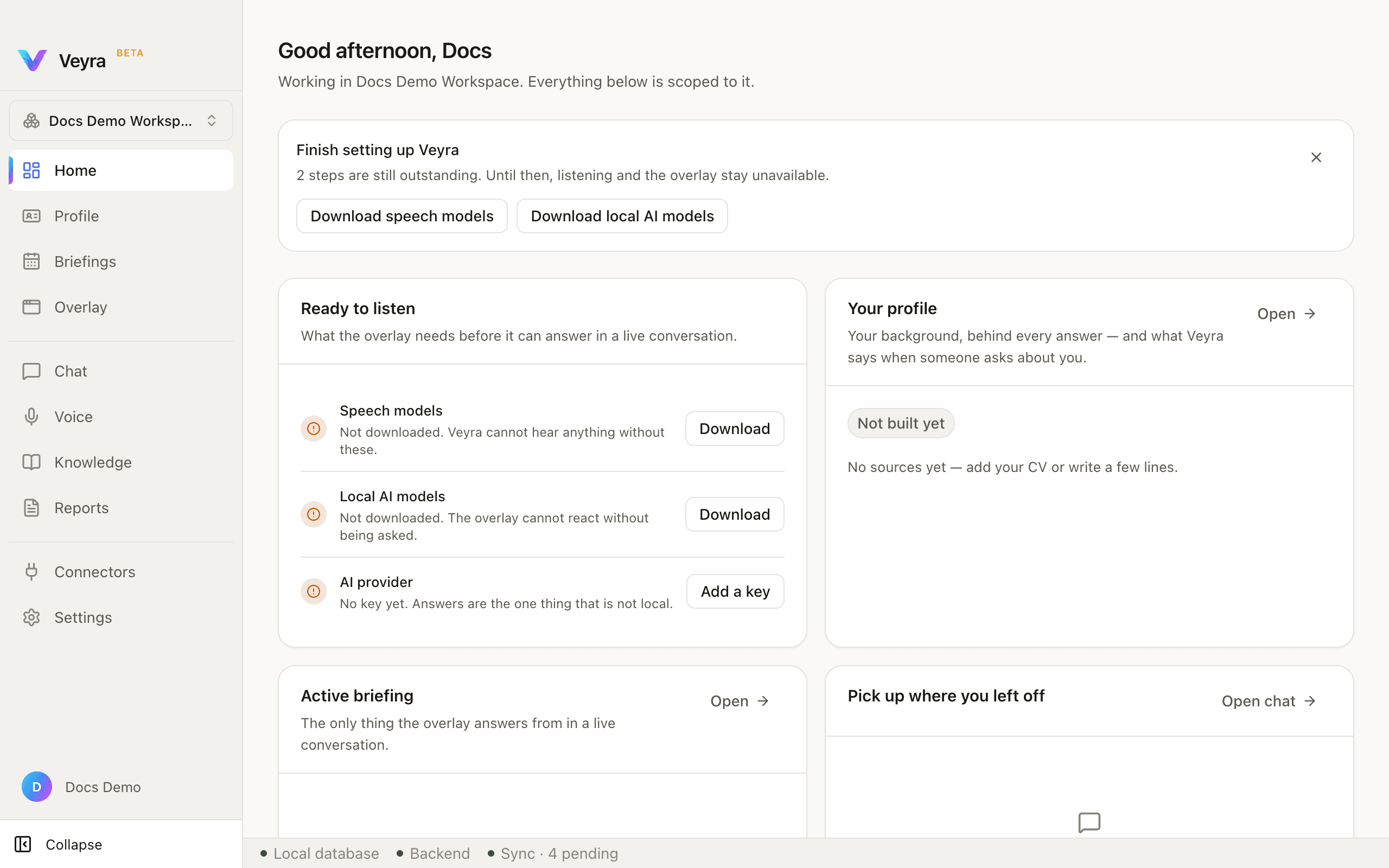
Home greets you by name and names the active workspace, since everything on the page is scoped to it. A dismissible "Finish setting up Veyra" card lists whatever setup is still outstanding, as buttons you can click straight from here.
| Ready to listen | Three rows — Speech models, Local AI models, AI provider — each with a status icon and a Download / Add a key button. All three must be green before the overlay can answer in a live meeting. |
|---|---|
| Your profile | Empty-state summary with an Open → link to the Profile pane. |
| Active briefing | Empty-state summary with an Open → link to Briefings. |
| Pick up where you left off | Your most recent chat, or an empty state, with an Open chat → link. |
A status bar runs along the bottom of every page in the app, not just Home: three dots for Local database, Backend, and Sync — Sync also shows a live pending-item count when there is queued work.