Docs
Briefings
Walk into the meeting already prepared, and connect the sources a briefing can pull from.
Preparing a briefing
A briefing is what Veyra reads before a specific meeting: an agenda, documents you attach, and — if you have connected them — the relevant calendar event, emails, and Slack context.
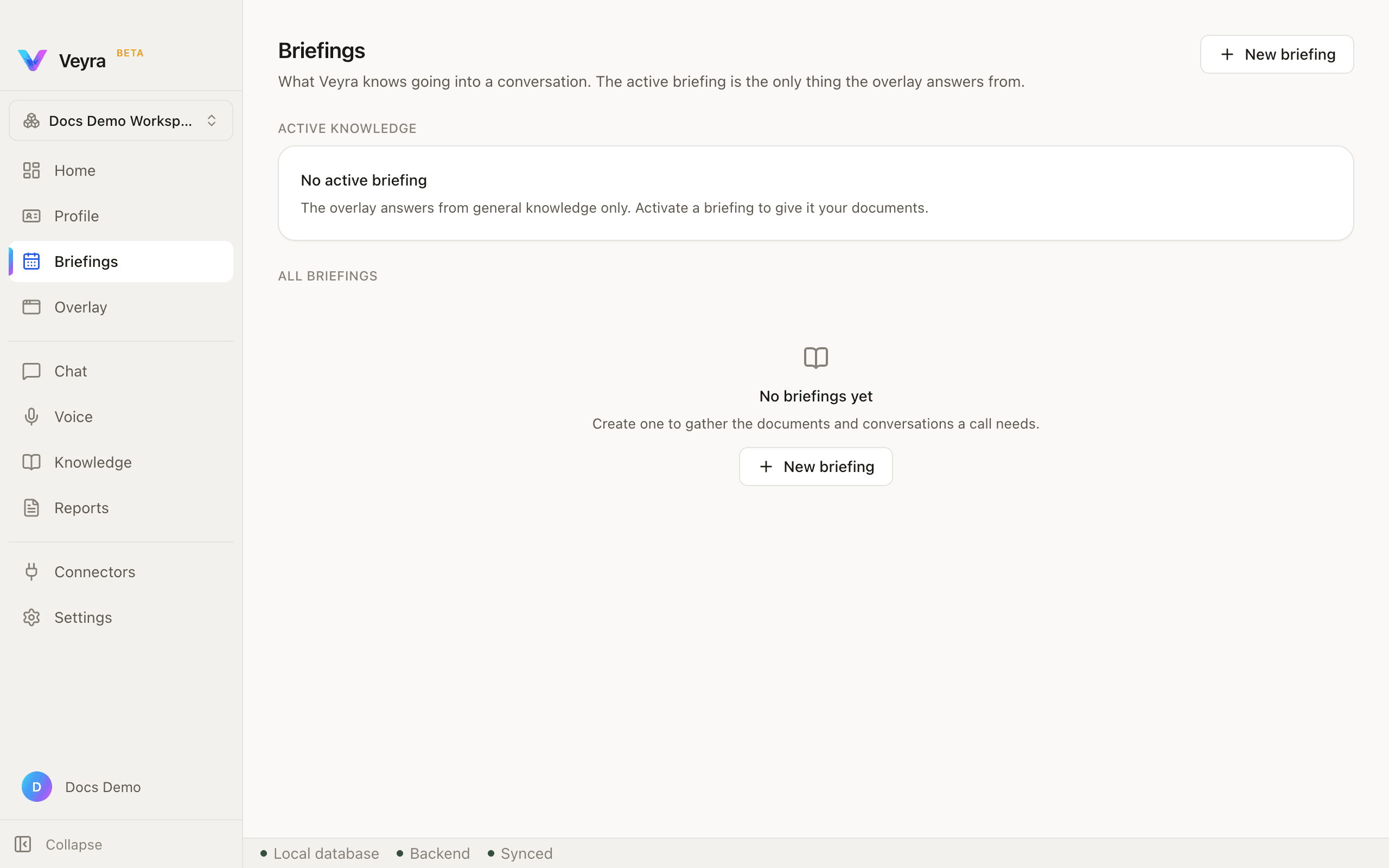
Two sections on this page: Active knowledge, which names whichever briefing is currently feeding the overlay (or says none is), and All briefings, the full list.
- 1Open Briefings and click + New briefing.
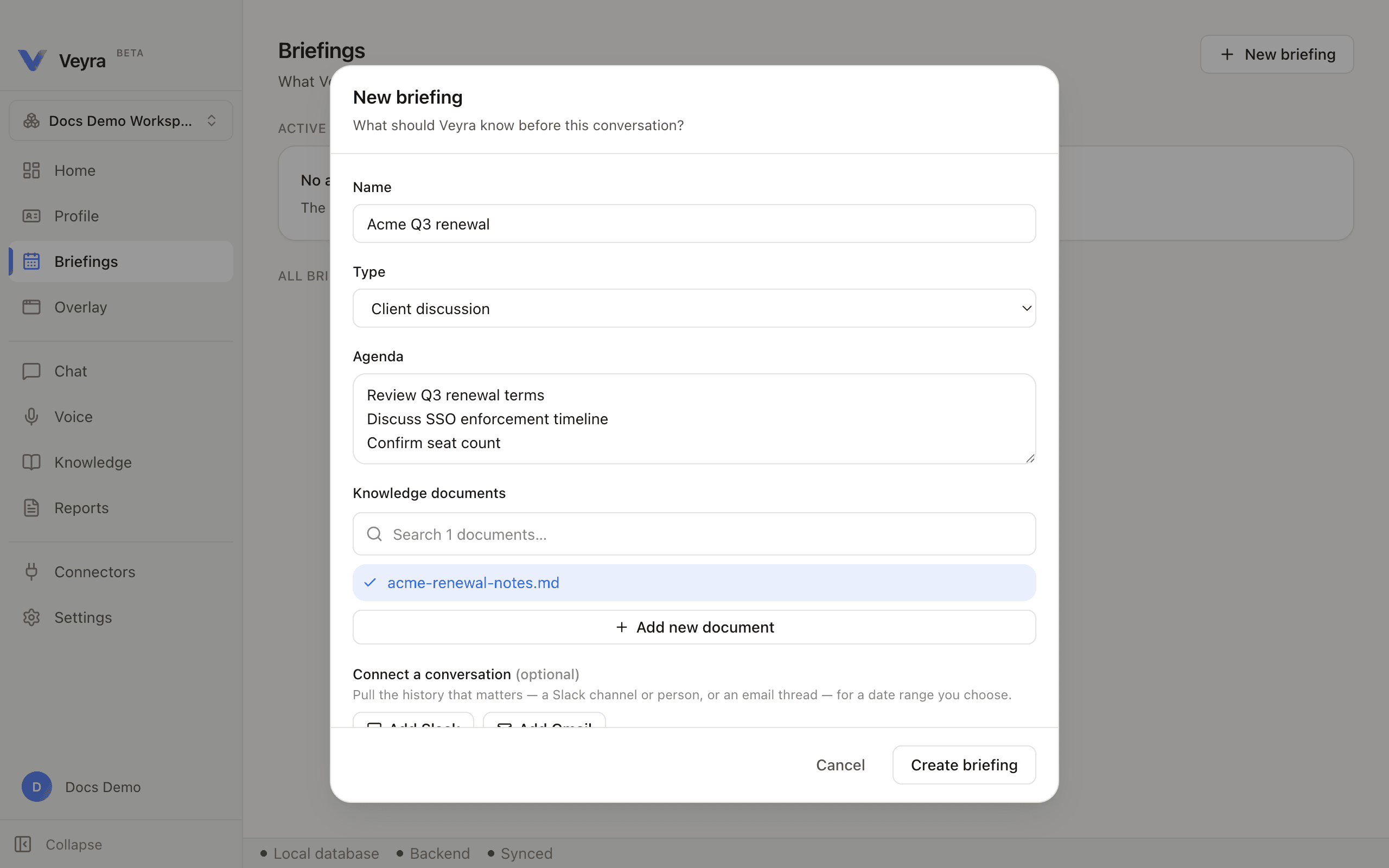
- 2Name it, pick a meeting type, and add the agenda — one item per line.
- 3Attach knowledge documents, or add a new one without leaving the form.
- 4Optionally connect Slack or Gmail so relevant messages come in too — see Connecting Google and Slack below.
- 5Build it. Veyra indexes everything once, before the meeting starts.
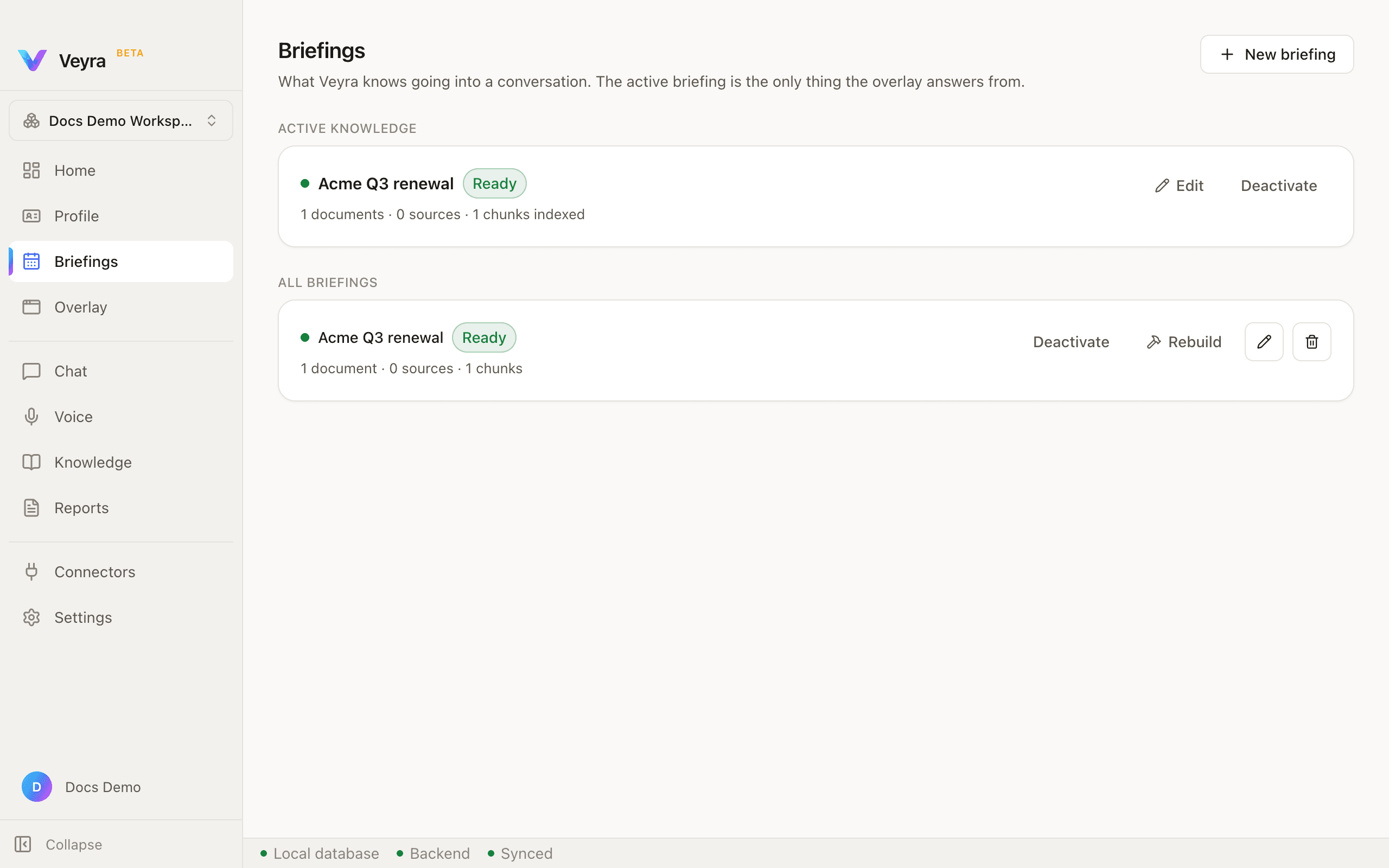
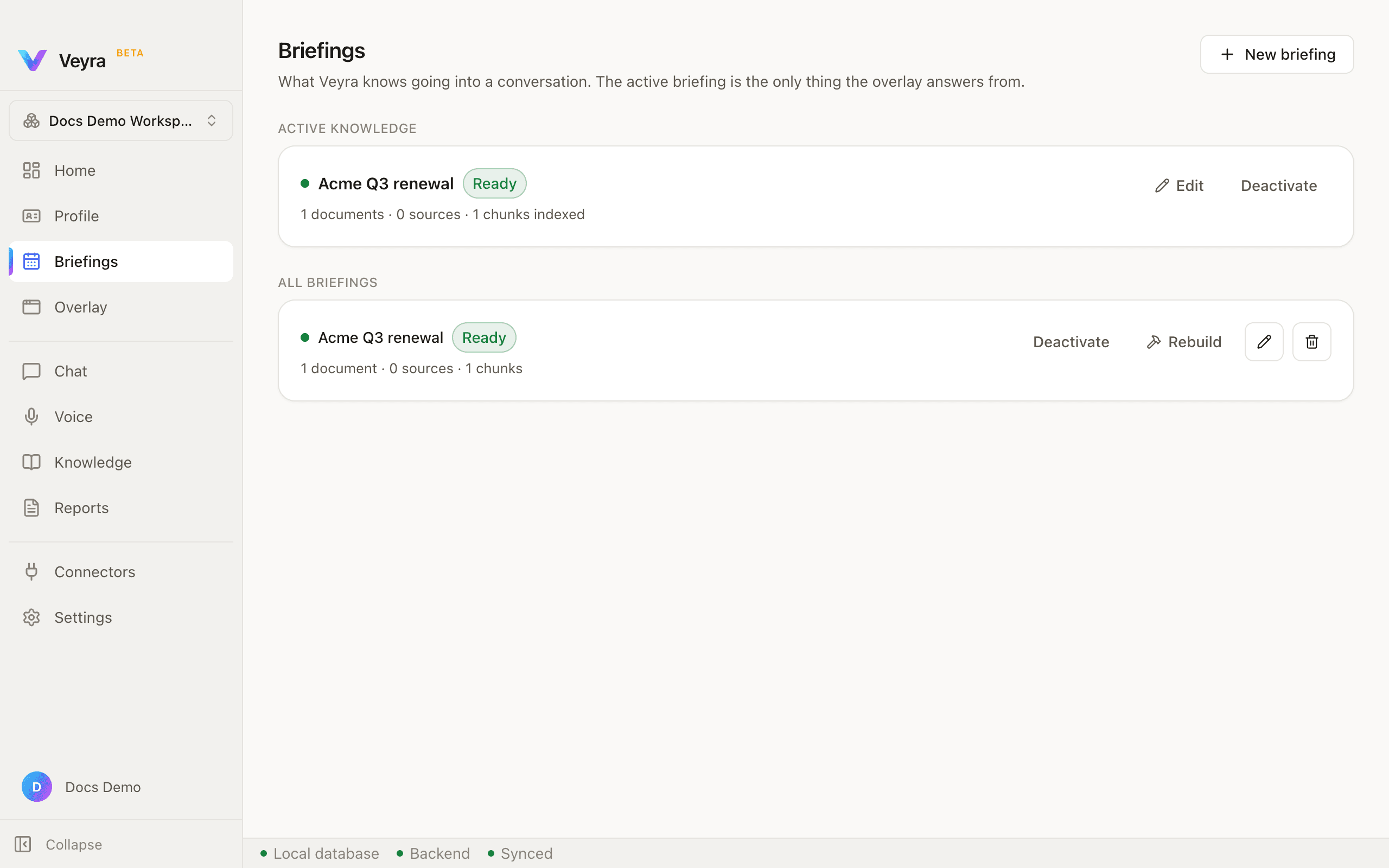
Building a briefing indexes everything attached to it — agenda, documents, connected sources — the same local process the Knowledge pane uses. Once ready, activating it is what makes the overlay answer from it during a meeting, rather than from general knowledge only.
Connecting Google and Slack
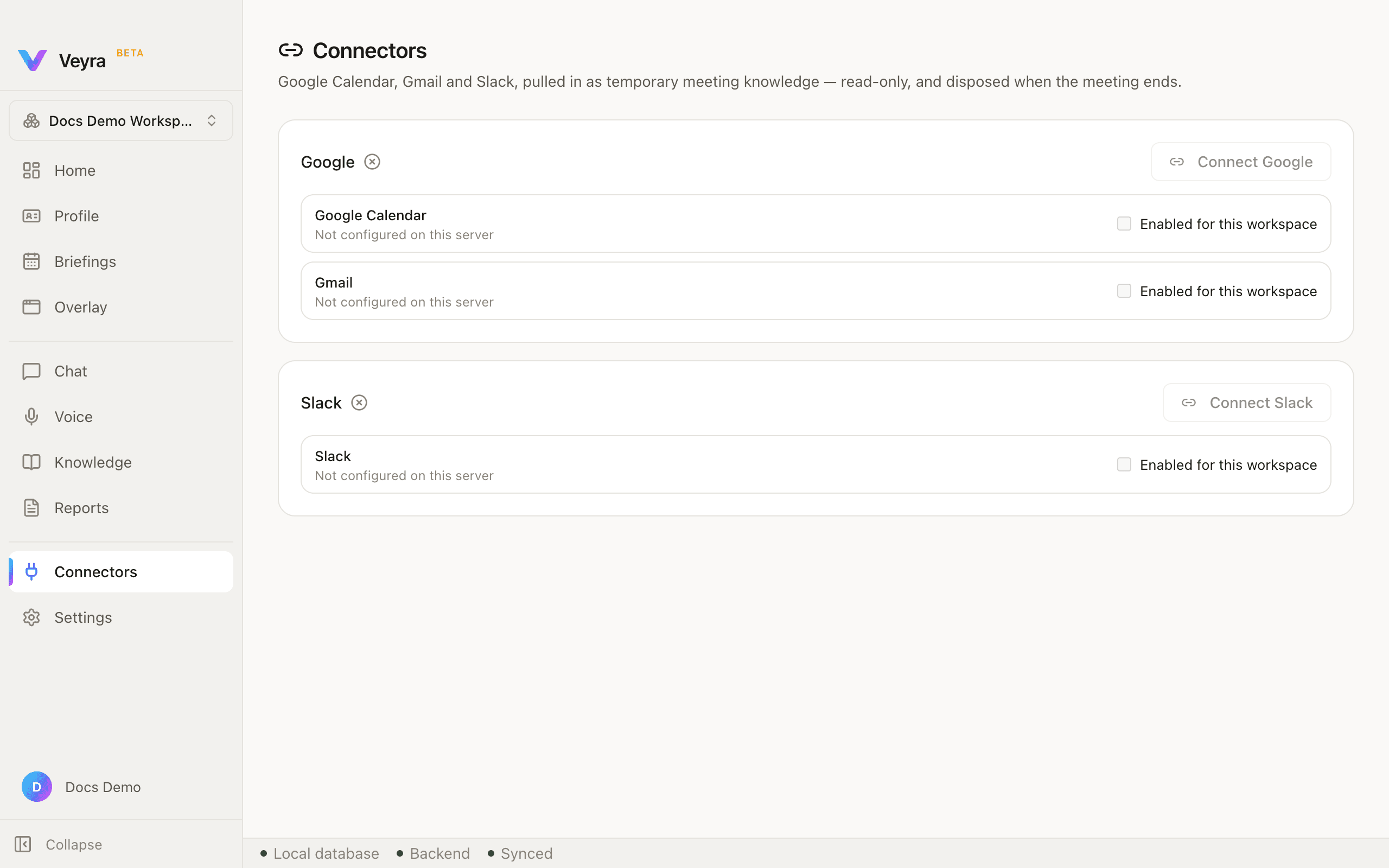
Read-only. Calendar and Gmail share one Google sign-in. What a connector brings in is used for the meeting and disposed when it ends — it is never added to your permanent knowledge base.
| Google Calendar | Under the Google account |
|---|---|
| Gmail | Under the Google account |
| Slack | Its own Slack account |
Connect Google / Connect Slack open a real sign-in with that provider. Veyra never sees or stores your Google or Slack password — only the access it grants once you approve it there.